Aria Operations Management Packs End of Support

Just came across this one today – https://knowledge.broadcom.com/external/article/373307

Broadcom is marking a large number of Aria Operations Management Packs as End of General Support as of Oct 1, 2024. There are a lot of good ones there that I know are in use today. It seems like most of them are going self-service and will require building of your own management pack with the Management Pack Builder. According to a blog I found on the vmware blogs site this seems straightforward. And there is a community page so you can ask your peers for help.

I know I’ll be talking about this and seeing what functionality is needed with the teams I interact with.

Storage Sense and OneDrive in VDI and FSLOGIX

I ran into a weird issue when I was migrating 100s of GB of data to OneDrive. I was getting an error that the disk was out of space but when I checked the local disk there was plenty of space. I eventually traced this to the OneDrive cache that was housed in my FSLOGIX. I needed to run storage sense and have it dehydrate the local files so that I would have space. I set a GPO on the OU where the computers reside to enable Storage sense, run it daily, and to dehydrate any file that was not touched in 1 day. I learned a few other things along the way.

My VDI desktop is a non-persistent instant clone that has my profile data redirected to an FSLOGIX container on a NAS. Our profiles have a 25GB quota. We redirect Documents, Desktop, AppData and some other folders. We specifically exclude Downloads, and browser cache/temp folders. OneDrive’s Cache by default lives in the user’s profile

During my testing I attempted to change the location of the OneDrive folder to a folder outside of the profile (remember it’s redirected with FSLOGIX, and this is a non-persistent desktop so everything not redirected is destroyed on logout). I used the DefaultRootDir setting in the OneDrive GPO to send this to c:\tmp. The initial login and configure went just fine. I logged out, and when I logged back in with a new session OneDrive was very angry. It choked on the missing OneDrive – [Organization] root folder. I created this and OneDrive then complained that there was nothing there. I modified the image so that the root folder was preset and OneDrive would not launch automatically and complain. On another computer I saw a large number of files being deleted on my OneDrive. I assume this was related to the missing files on the test computer.

Ultimately I decided even if I was able to get OneDrive to stop complaining, and to automatically launch for the user I couldn’t subject my users to the delay as OneDrive built all the stub-files on the local system. Not to mention the unaddressed deletes. This means I need to keep the OneDrive folder within the profile data that we are persisting for the user.

We have always set the FilesOnDemandEnabled in the OneDrive GPO to only download the necessary files to the local system. As you interact with files they are cached locally for you to use. This only handles the hydration of files, not the dehydration. I found that this is handled by Storage Sense, which should kick off when you are low on disk space. (No I have not found what the threshold for low is). This requires the storage service to be running on your computer. Because this is a VDI optimized windows configuration we have disabled unnecessary services like the storage service.

Enter the Storage Sense GPO to save me from myself. Through the GPO I enabled Storage sense, and set it to run daily, I also set the threshold to dehydrate files to 1 day. These are both the most aggressive that they can be set. This means that storage sense will run at some point every day (I did not investigate deeply to see when this happens, I know it is not at logon) and will dehydrate files that haven’t been accessed in the last 24 hours. I think this means that if my desktop session stays logged in the longest a file will remain cached is just under 48 hours.

I did not configure any of the other storage sense options like downloads, recycle bin or temp file cleanup. This is a non-persistent VDI desktop and we don’t capture these in the FSLOGIX profile so they are destroyed on logout. I also set storage sense to run daily so that it is likely to run at some point while a user is logged in. If a user logs in a 8a and out at 5 there is a greater chance that the cleanup will run if I have it execute daily. The 1 day dehydration was an aggressive setting for testing, I will likely change this to a more realistic setting for my every-day users.

Some interesting things to note:

  • Automatic dehydration will not impact files that a user has specified to ‘Always keep on this device’ they will only dehydrate when the user unchecks this. It should auto-dehydrate based on the storage sense policy or immediately if the user selects Free up space
  • The keep on this device setting is per device. In a VDI scenario is translates to keep with this profile. This does not impact the locality of data on physical endpoints, or other VDI desktops where the user gets a different profile. (On-prem vs Cloud if the profile is not shared between them)

Resources:

Update manager woes

Had a problem this evening where an ESXi host would choke on the 6.5 U2 update. vSphere reported “The host returns esxupdate error code:15. The package manager transaction is not successful. Check the Update Manager log files and esxupdate log files for more details.”  Which lead me to https://kb.vmware.com/kb/2030665

esxupdate.log had the Python errors listed in that KB. Quick fix right? No, that would be too easy. After following the easy instructions in that KB where you just delete the /locker/packages/6.5.0 directory. I kicked off VUM and was presented with the same error. Tried the long fix. Recreated the 6.5.0 structure from a good host. Again same error.

Some digging lead me to https://blog.definebroken.com/2017/07/28/patching-vsphere-esxi-to-6-5u1-failing-with-error-15-cause-ran-out-of-vfat-space-due-to-vsantrace-and-vsanobserver-files/

He had a problem with vsantrace files.  I checked and that wasn’t my problem.  But I did cause me to watch the vmkernel.log to see if there were any clues there.

Sure enough I was getting a bunch of out of space errors:

2018-08-11T04:28:18.037Z cpu23:124089)WARNING: VFAT: 313: VFAT volume mpx.vmhba32:C0:T0:L0:8 (UUID 597f645d-2327f2da-1218-246e963e79d0) is full.  (585696 sectors, 0 free sectors)

Did some du work and found that /store/locker/core was taking up ~80MB

[root@HOSTA1:/vmfs/volumes/597f645d-2327f2da-1218-246e963e79d0] du -h .
256.0K ./packages/var/db/locker/vibs
256.0K ./packages/var/db/locker/profiles
768.0K ./packages/var/db/locker
1.0M ./packages/var/db
1.3M ./packages/var
1.5M ./packages
80.2M ./var/core
80.4M ./var
256.0K ./epd-new
82.4M .

Sure enough there was a zdump file in var/core

A simple rm and then everything worked.


I didn’t catch this in my initial troubleshooting because the VFAT partition reported as 28% in use.

Since I was patching ESX itself the first step is to delete and recreate the vmtools and floppy images vCenter uses for client OS installation. These are stored in the /store/packages/<ESXversion> directory. This freed a bit of space, but all the space on the partition was consumed when it copied the updated versions and packages for installation.

Sometimes it is just a different simple fix.

Unassociated vSAN objects

Since mid 2017 I have been aware of an issue with Vmware Horizon that when a VM is deleted files are left behind.  When Horizon creates a new machine with the same name a new folder is created with an _1 appended to the end (or _2, _3, …  if this machine has been deleted multiple times.) It seems this has been an issue with Horizon since v6.0 and vmware has a KB article for a work around (KB2108928)

That work around isn’t great,  it is manual but works in a traditional storage environment. An admin would console/ssh into an ESXi host and issue an rm -f command on the offending folders and be done. My virtual desktop VMs reside on a vSAN. Within a vSAN all the folders and vmdk files are objects; if I were to rm a folder on a vSAN datastore it would not delete the underlying objects and they would still consume space on the disks. The rm command is not vSAN aware.

I could load up the vSphere web console and delete the directories individually. I could even use the HTML5 interface and select multiple folders for deletion simultaneously. In either case I need to check each individual folder to verify it is no longer in use.

There has to be a better way.


Thankfully the vSAN engineers have a command that will list the status of every object stored on the vSAN. This command is aware which VM is associated with each object. Since the source VM has been deleted the objects remaining will be unassociated. Be careful with unassociated objects; any template, ISO, txt, ova,etc file that you have placed on your vsanDatastore that is not mounted or in use by a VM will be in the unassociated object list.

To get this list login to RVC on your vCenter appliance and execute:

vsan.obj_status_report . --print-uuids --print-table

(see https://blogs.vmware.com/vsphere/2014/07/managing-vsan-ruby-vsphere-console.html for info about RVC)

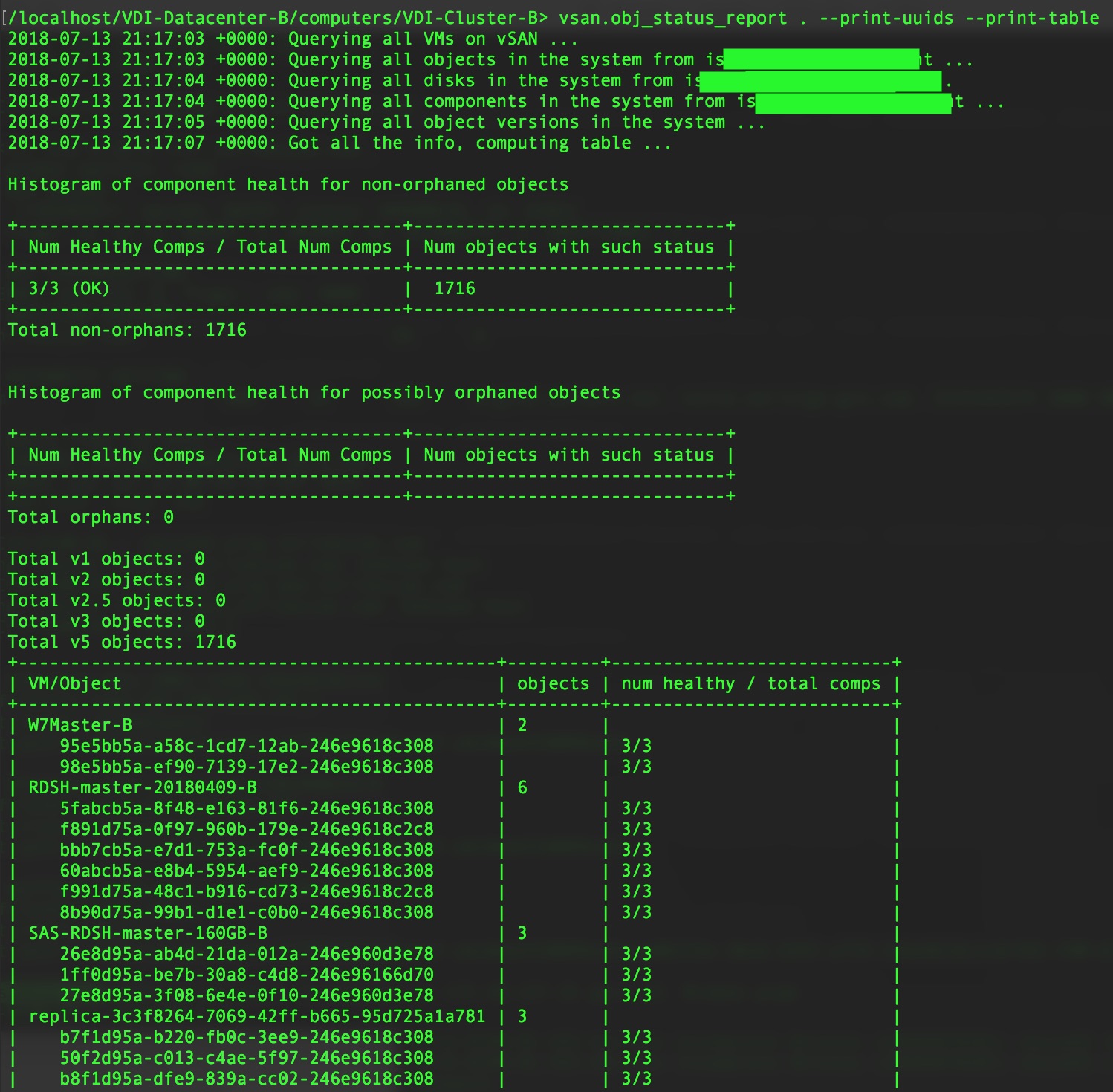
Initial header output:
20180713-vsan-obj_status_report-header

Unassociated objects are below the list of VMs:

20180713-vsan-obj_status_report-unassociated

We copy the list of unassociated objects into the clipboard.


Then on an ESXi host in the vSAN cluster we create a new file with vi and paste the contents in and save as unassociated.txt.

(I have not found a more elegant way of doing this, please let me know in the comments if you do, the esxcli vsan namespace commands are not aware of object and VM association)

We now have a file that has your object UUIDs and some display artifacts.

We do some text processing to remove those artifacts:

cat unassociated.txt | awk '{print $2}' > UUID.txt


Now we have a file with just the UUID of the unassociated objects.

Time to translate the UUID into something we can use to filter and narrow the list to just the objects we would like to remove. We use the objtool command and loop through the UUID.txt get the metadata on each object and output that to another file:

cat UUID.txt | while read UUID ; do echo -e "\nUUID: $UUID" ; /usr/lib/vmware/osfs/bin/objtool getAttr -u $UUID | grep -i 'friend\|class\|path'; done > uuid_status.txt


uuid_status.txt now contains four lines per object: UUID, Friendly name, Object Class, and Path:

20180713-uuid_status.txt

That’s not too useful if we want to filter this in a meaningful way.

Lets make a csv we can ingest into something else (or filter further)

awk '/UUID: /{if (x)print x;x="";}{x=(!x)?$0:x","$0;}END{print x;}' uuid_status.txt |sed 's/UUID: //g' |sed 's/User friendly name://g' |sed 's/Object class: //g' | sed 's/Object path: //g' | sed 's/,$//g' > uuid_status.csv

Thanks to http://www.theunixschool.com/2012/05/awk-join-or-merge-lines-on-finding.html Example 4 for the awk command.

This will create a csv file with each object taking up one line.

Further filtering needs to be done to only have the UUIDs of objects we truly wish to delete.


Positive match filtering:

Since all my VMs are created by Horizon they follow a naming pattern, and the friendly name and path are both based of the I have a easy job filtering.

In my case the objects all contain  VDI- at the beginning of the namespace or the filename

grep ',VDI-\|/VDI-' uuid_status.csv > uuid_to_delete.csv


Negative match filtering:

If I didn’t have the luxury of  positive match filtering I would have to generate my list based on exclusionary patterns

For example my Appvolumes vmdks are unassociated so I would filter out the appVolumes folder as well as the apps & writable template folders.  If I had an ISO folder I could exclude it. And I would always want to exclude the .vsan.stats object

grep -v appVolumes uuid_status.csv | grep -v _templates | grep -v ISOs | grep -v vsan.stats > uuid_to_delete.csv


(note: I’m not including the leading / for folder names. If you use “/foldername” as your grep filter it will not match the namespace object. Deleting the namespace object removes vCenter’s access the object)

To be more confident combine both positive and negative filtering:

grep ',VDI-\|/VDI-' uuid_status.csv | grep -v appVolumes | grep -v _templates | grep -v ISOs | grep -v vsan.stats > uuid_to_delete.csv


I like to do a visual check of my list so I load up the csv in excel and peruse the contents to be sure.

Once we have final list of files to delete in uuid_to_delete.csv we need to remove everything except the UUID:

cat uuid_to_delete.csv | awk -F , '{print $1}' > uuid_to_delete.txt


Now comes the point  of no return. I suggest verifying your backups prior to this step.

Deleting the objects:

cat uuid_to_delete.txt | while read UUID ; do /usr/lib/vmware/osfs/bin/objtool delete -u $UUID ; done


Yes a few of these steps could be combined. I separated them for instruction, and to reduce unintended consequences.